Coping with RAR files in Windows
If you do a lot of file sharing or downloading from newsgroups then you've probably encountered .rar files. If you're accustomed to Winzip then you're probably somewhere between frustrated and annoyed with them. Here are some tips for coping with .rar files in Windows.
Note: This does not work in Vista, please see the Vista-specific tutorial.
Like most archives, the extract utilities for .rar files are free. Unfortunately, the free extractor for Windows is a command line tool which is a pain for most users. If you do a search you can find a few people selling a UI for this free extractor. Bah, I'm not going to pay for a fancy UI when all I need is the ability to right-click on a .rar file and select "Extract".
Here is about the simplest way I can think of to unrar files without buying any software.
Step #1: Download and install the free command line .rar extractor. Jump over to rarlab.com and look for something called "UnRAR for Windows". Download and install it. It will default the installation folder to "C:\Program Files\UnRar\".
Step #2: Open Windows Explorer and open the Tools->Folder Options Menu
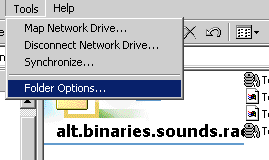
Step #3: On the Folder Options dialog, hit the File Types tab. This lists all the registered file types on your computer. In general, you don't want to mess around with these too much unless you know what you're doing. You'll probably see a lot of file types you've never seen before, just leave them alone. Scroll down to the RAR file extension, you might already have RAR listed as an extension. You can delete it if you like or leave it. If you delete it then any programs that are registered to handle .rar files won't be any more. It's your choice.
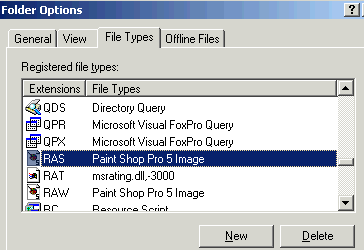
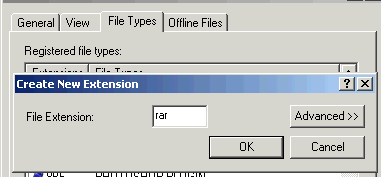
Step #4: If you didn't have RAR listed in the previous step (or deleted it), hit the New button. A dialog will pop-up. Enter "rar" (without the quotes, no period, lowercase) in the box.
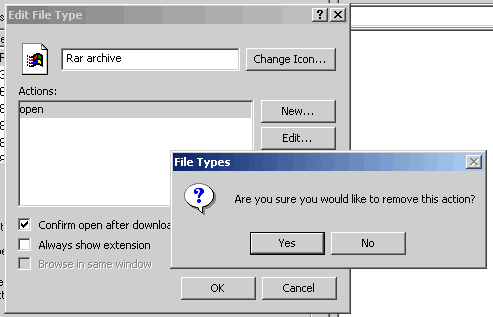
Step #5: Hit the Advanced button in the Folder Options dialog. The Edit File Type dialog will load. If you registered the .rar extension in the previous step there may be a default "open" action. Go ahead and delete that. If you already had the .rar extension registered then there will probably be other actions here. If you want to delete them go ahead. Leaving them won't hurt though.
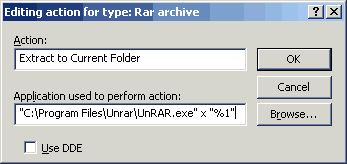
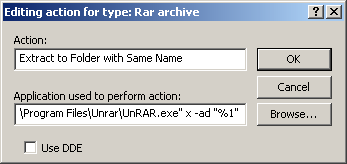
Step #6: On the Edit File Type dialog hit the New... button. A dialog will open to set a new action. In the Action box type "Extract to Current Folder" or whatever else you feel like. You could put "Format Hard Drive" there if it makes you happy. In the Application [..]: box type: "C:\Program Files\Unrar\UnRAR.exe" x "%1". Of course, if you installed UnRAR to a different folder you'll want to use that path instead. It should look remarkably like the picture below when you're done. [Note: In Windows XP the title of the dialog is "New Action"]
Step #7: Hit OK on the Edit action dialog, then hit OK on the Edit File type dialog, and one more time on the Folder Options dialog. Now it's time to try it out. From Windows Explorer go to wherever you have a .rar file and right-click on it. You should see a menu option called "Extract to Current Folder". Well, unless you called it something different in the previous step.
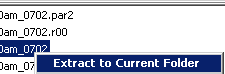
If you set up everything correctly the file(s) contained the .rar archive will be extracted.
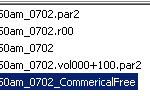
If you want to try some more advanced UnRAR options, run "UnRAR" from the command line with no files specified. It will print a list of all supported options, there are a lot. The only one I find useful is the -ad switch. This causes the archive to extract to a folder with the same name. I use it for archives that contain multiple files. You can add a second action to do this as well.
 If you want a
half-way decent icon for .rar files, right click on the picture to the
left and hit "Save Target As..". It is a link to little icon I
put together in about 2 minutes. Back on that Edit File Type dialog
you can set the icon.
If you want a
half-way decent icon for .rar files, right click on the picture to the
left and hit "Save Target As..". It is a link to little icon I
put together in about 2 minutes. Back on that Edit File Type dialog
you can set the icon.
Tags: Windows